 Bhejde
Set up in ten minutes.
Follow the steps below. Every screenshot is from the real app, with the exact button marked in red.
Download the installer on your PC
Open the download section and press Download installer. The file is called BhejdeSetup.exe and it goes to your Downloads folder. Keep your PC and your phone on the same WiFi for everything below.
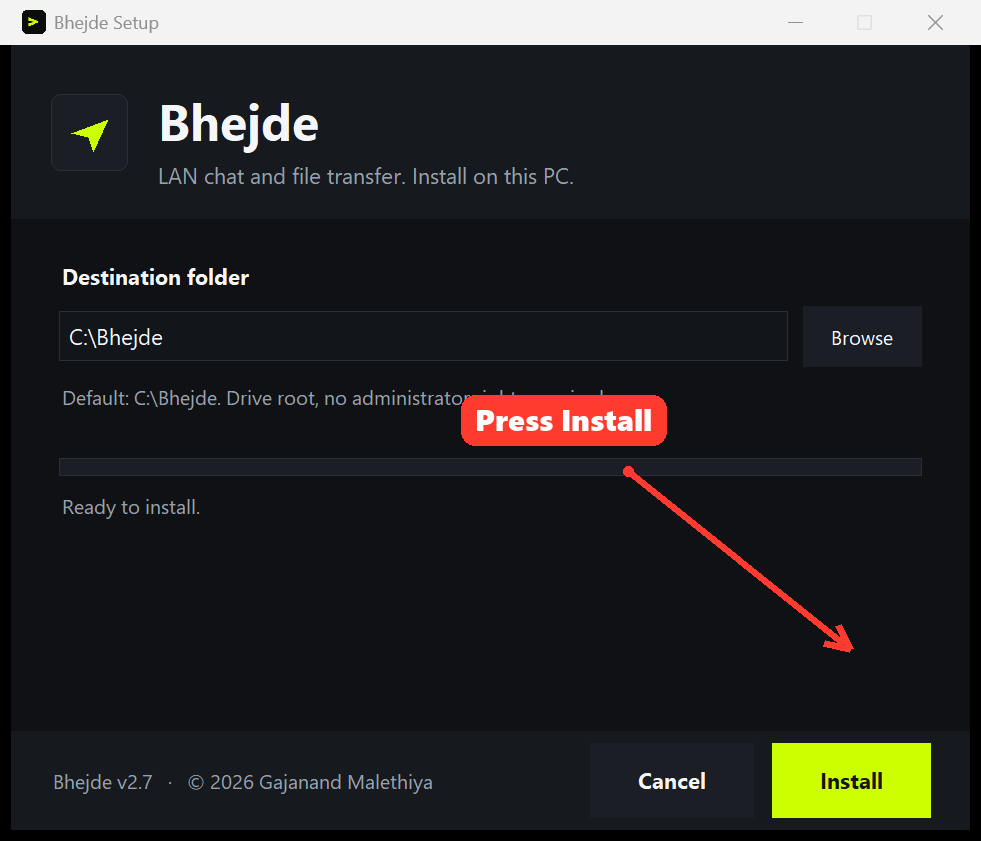
Run it and press Install
Double click BhejdeSetup.exe. The wizard opens with C:\Bhejde already filled in. You do not need administrator rights. Press Install and it finishes in a few seconds.
Get the PIN from Settings
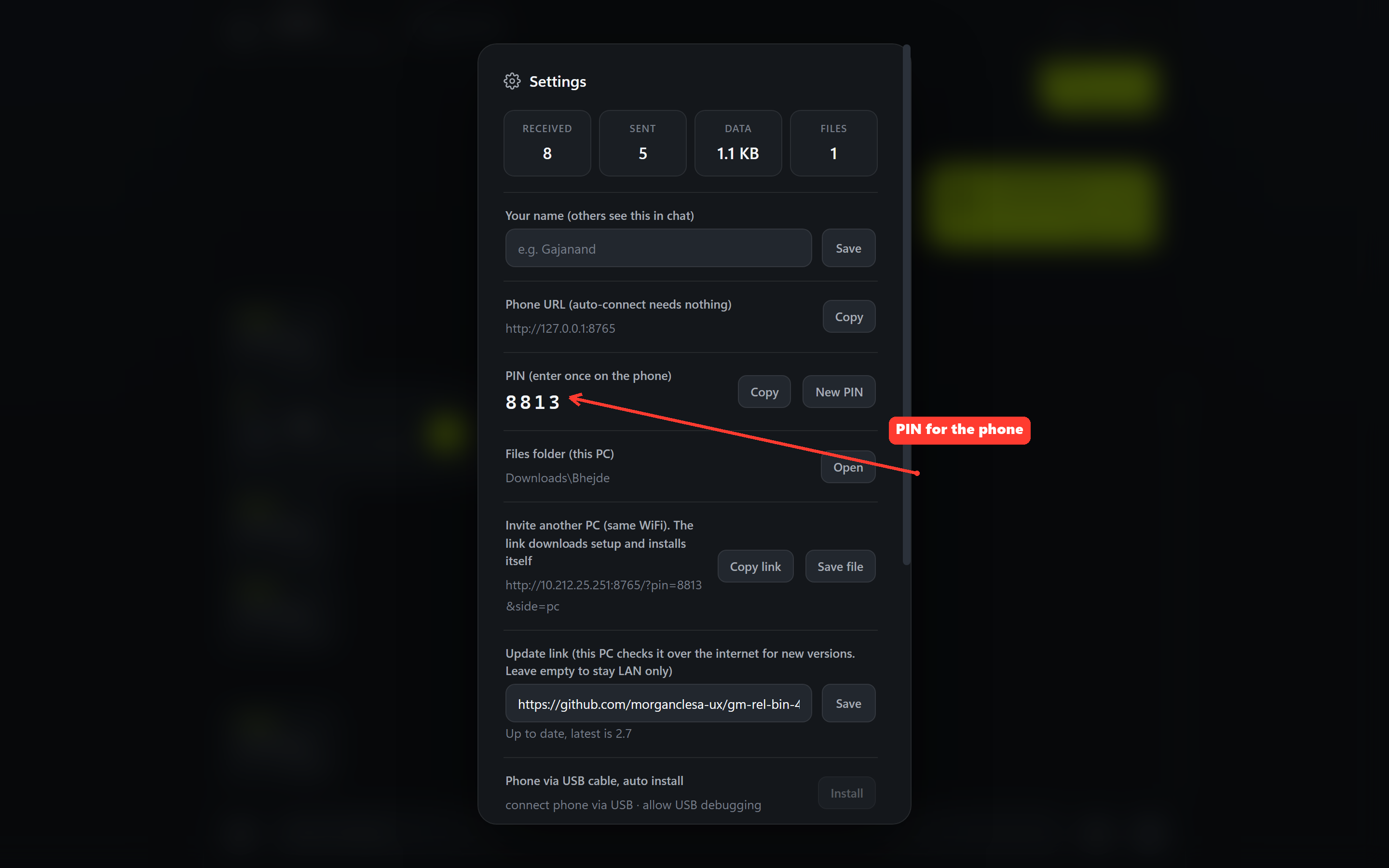
The PIN is what lets a phone join your PC. Open Settings in the app. You will see the PIN in big digits, a Copy button next to it, and your name field above it.
Install the app on your phone
On your phone, open this site, press Download APK and open the file. Android will ask for permission to install from unknown sources. Allow it for your browser. The app installs in a moment and opens on its own.
Let the phone find the PC
Both devices on the same WiFi. The phone app searches for your PC by itself and shows it on screen. Type the four digit PIN once, and you are connected. Nothing else to configure, no IP addresses to type.
Send a message, a file, or a folder
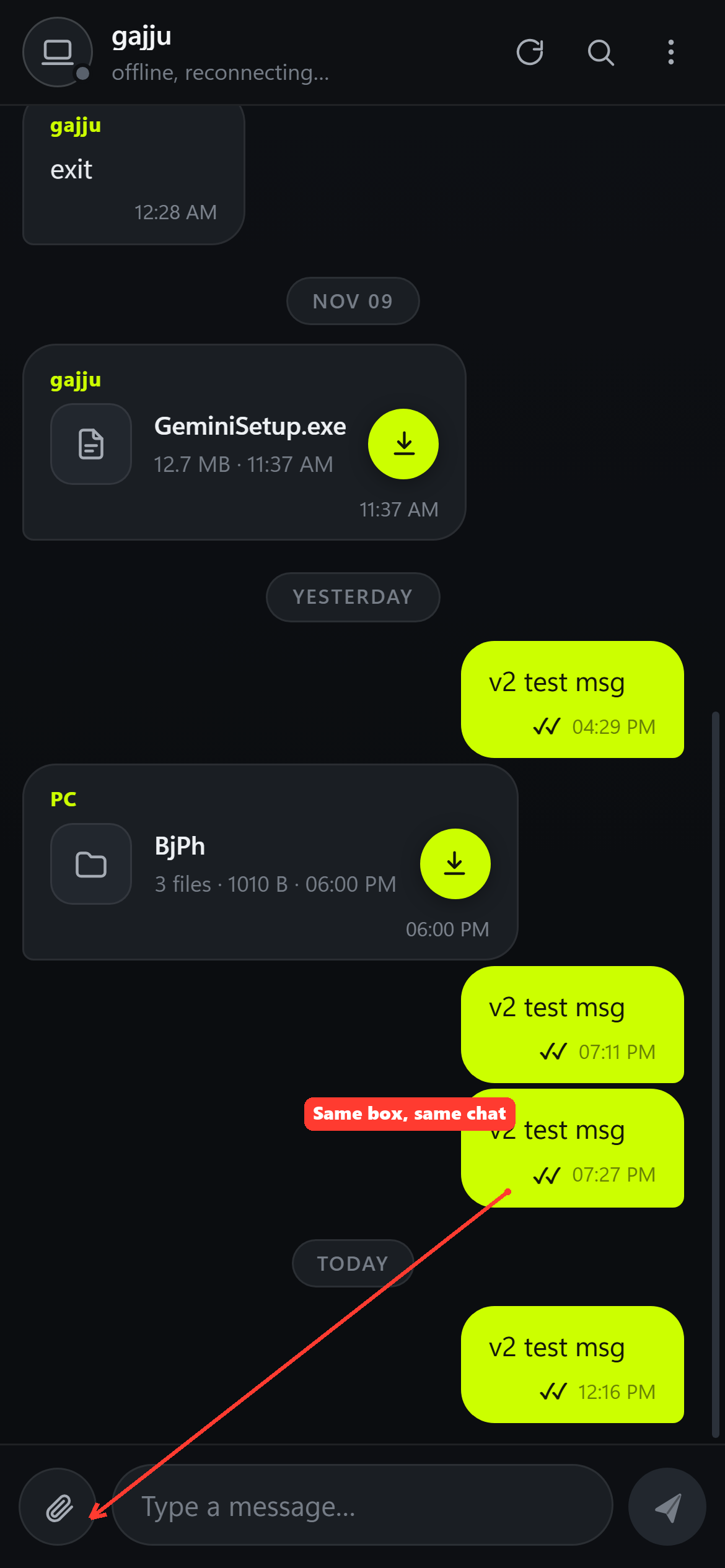
Type in the box at the bottom and press the send arrow. For a file or a whole folder, press the paperclip on the left. Folders are sent as they are, no zipping, and the folder structure stays intact on the other side.
Download what arrives
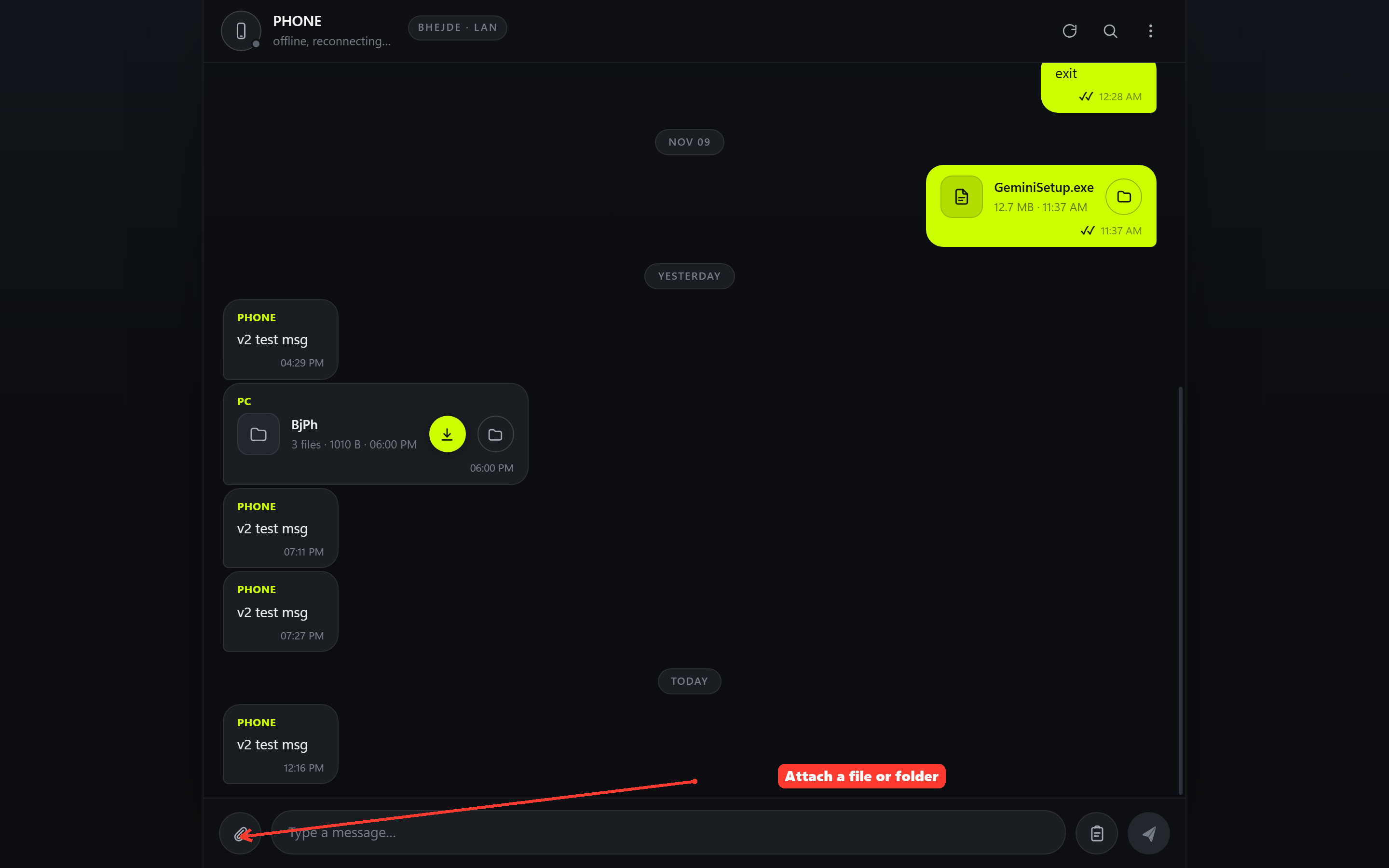
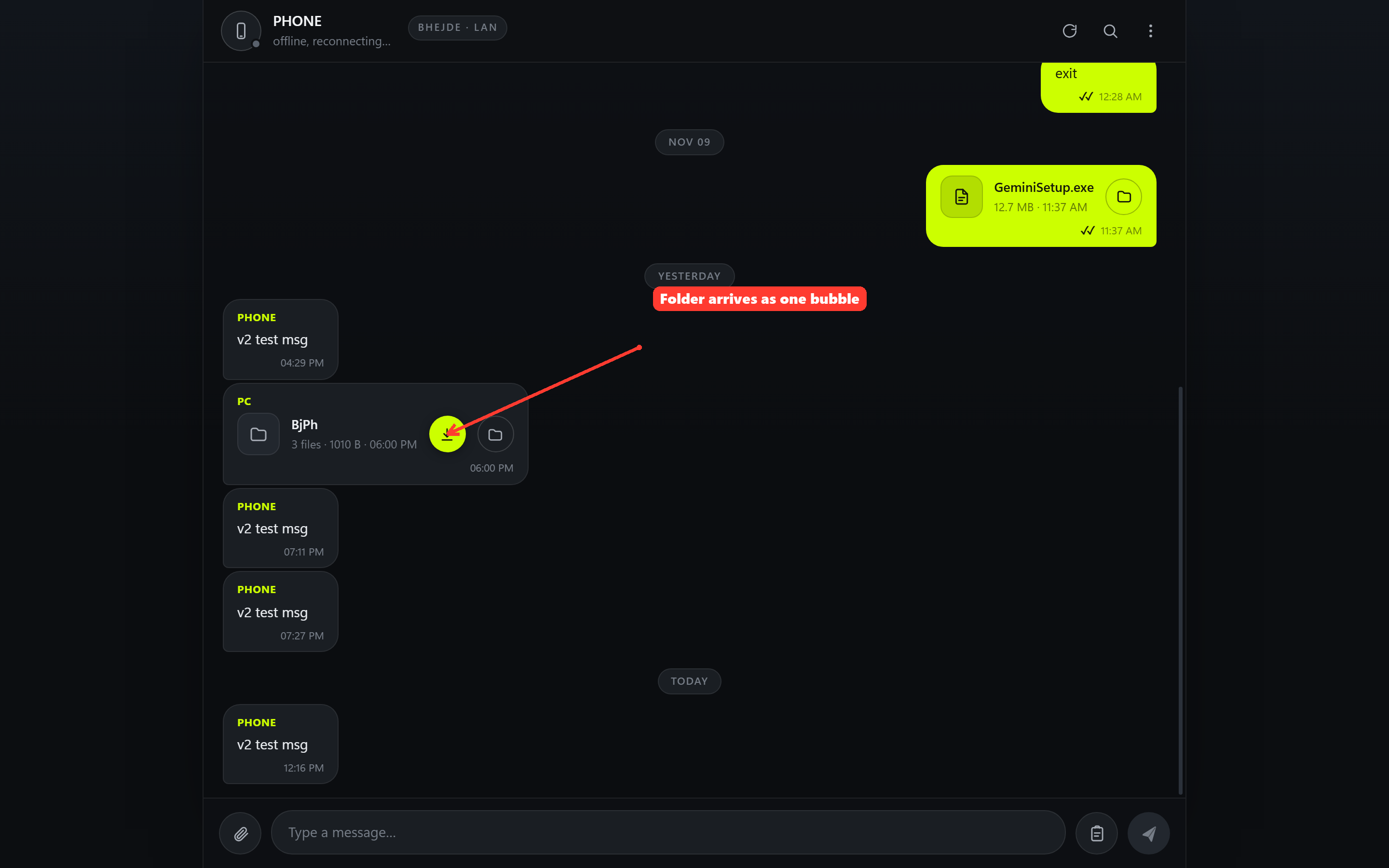
A folder comes as a single bubble with the folder name, the file count and the total size. Press the green download button to grab everything at once, or open the bubble to pick single files. Files land in Downloads\Bhejde with their real folder structure.
Second PC on the same WiFi?
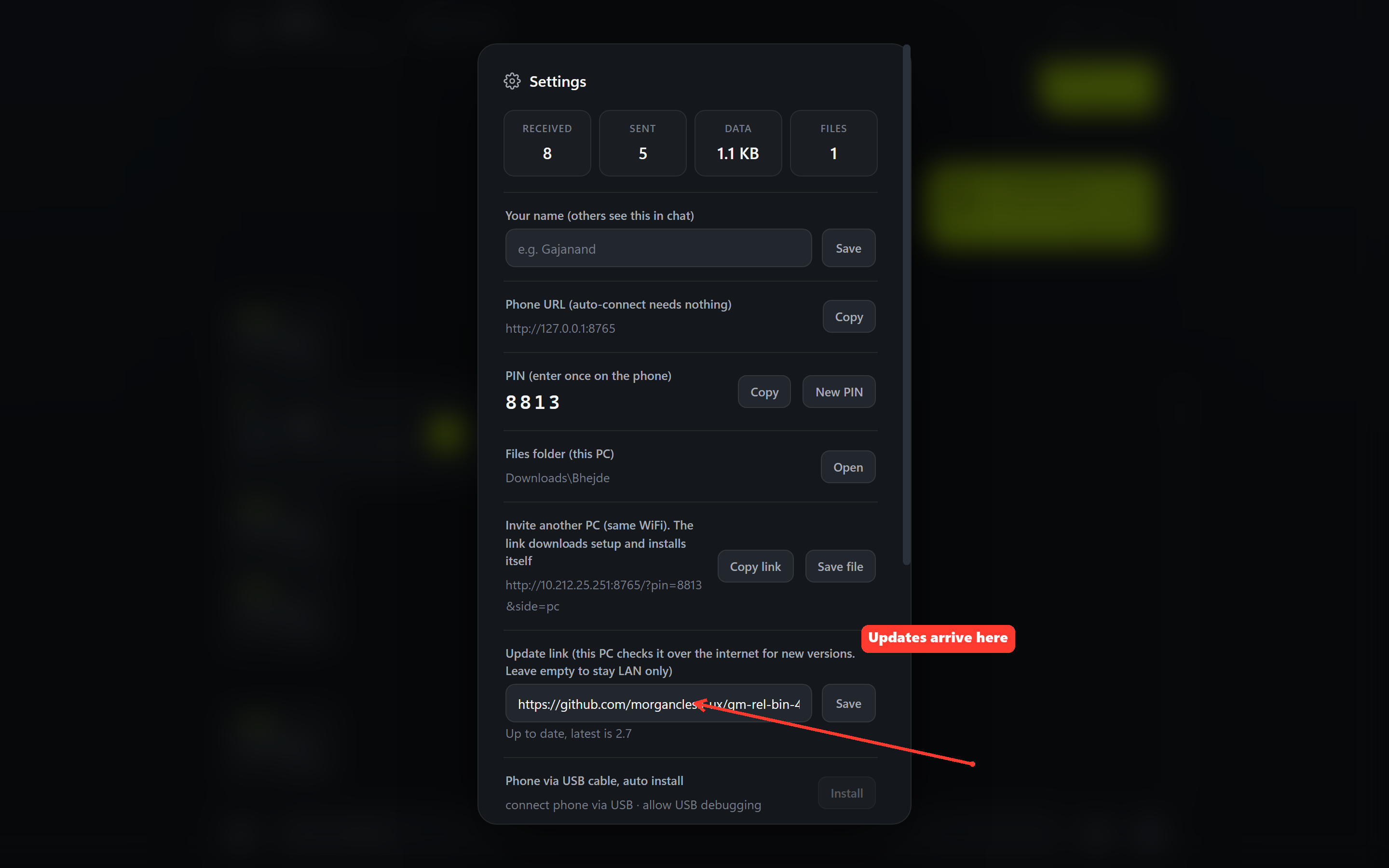
You do not need to download again. Open Settings on the first PC, find Invite another PC, and press Copy link. Open that link in a browser on the other PC. It downloads the setup and installs itself in one run.
Updates come to you
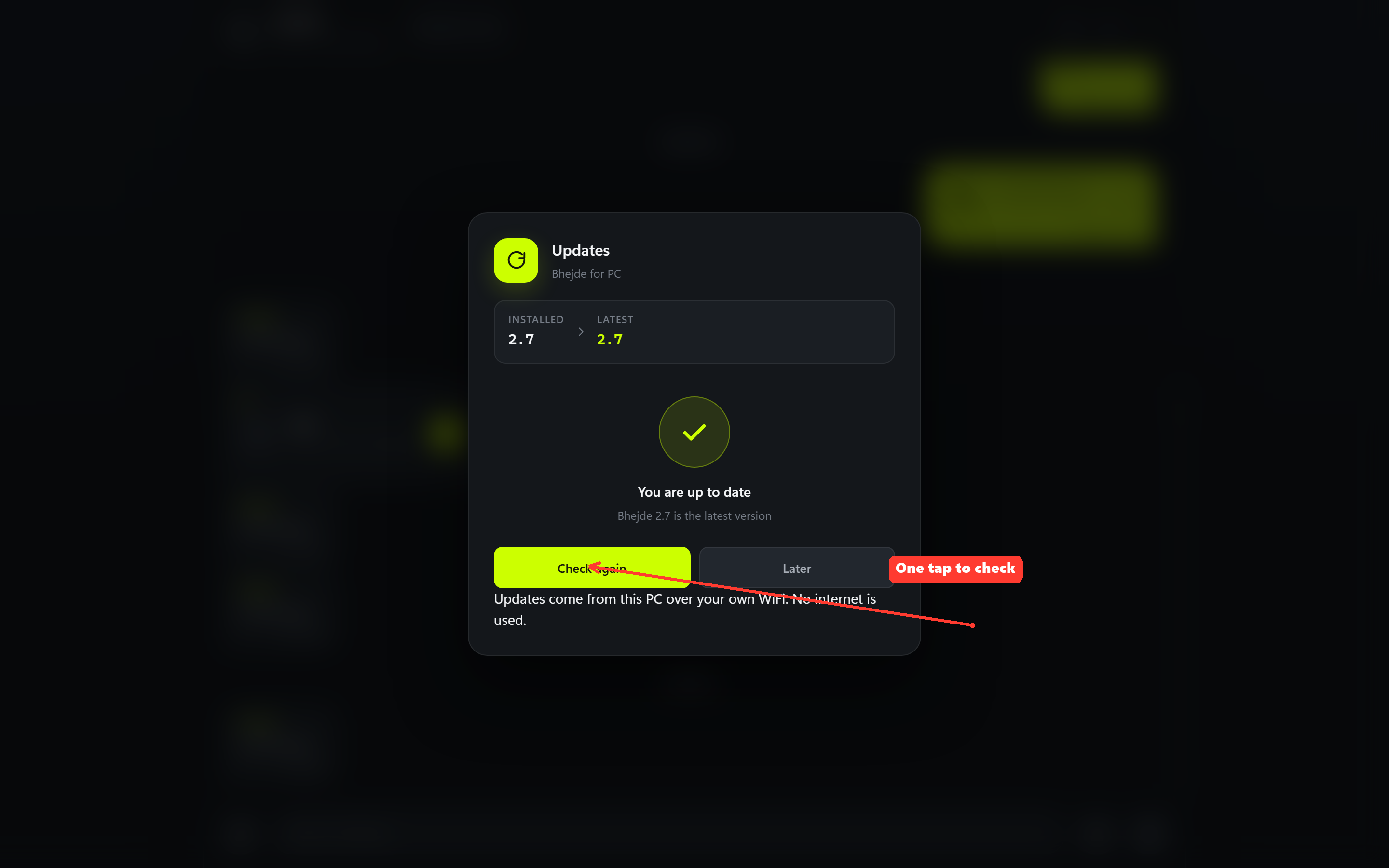
When a new version is out, the app shows a banner and the Updates screen. Press Check again or Install update and the new version replaces the old one by itself. Your chat history and settings stay exactly where they are.
That is everything
Chat stays open on both devices. Everything travels over your own WiFi. If something misbehaves, restart the app on the PC and open the phone app again, it will reconnect on its own.